Support & Knowledge Base

Find answers, learn how to get the most from Pro-curo, and explore guides covering every feature — from getting started to advanced administration.

No matching articles found

Try different keywords or contact our support team.

Need direct help? Our support team is here for you during UK business hours.

🏁

Getting Started

Logging on for the first time

Every user must log on to Pro-curo using their unique username, which should be supplied by your system administrator.

Select your username from the dropdown list by either clicking into it and scrolling, or typing the first letter of your name to jump to it. When you log on for the first time your password will be set to "password" — the system will prompt you to change this immediately.

Tip: If your administrator has enabled advanced security, your password will need to contain at least 6 characters (including a number) and must be changed every 30 days. Otherwise you can choose any password format.

You can change your password at any time by clicking the "Change password" link on the logon screen. You'll need to enter your current password, then your new password, and confirm it.

Forgotten password? Ask your administrator to reset it — they can force a password change which will default your password back to your login name.
Understanding the main screen

The main screen is where you'll spend most of your time in Pro-curo. The layout has evolved significantly across versions.

Versions 2 & 3 — Desktop

In V2 and V3, the main screen is a Windows desktop application with a menu bar across the top, a Locations panel on the left showing your storage hierarchy as a tree, and a Samples panel on the right displaying samples in a list view. Right-click context menus provide quick access to common actions. V3 introduced the grid view for box locations and the MySamples personal view.

Version 4 — Desktop

V4 introduced a modernised interface with a tabbed ribbon toolbar:

  • Tab bar — Switch between Locations & Samples, Administration, Mobile & Scanning, and Reporting. Standard users typically won't see the Administration tab.
  • Ribbon bar — Contains icon shortcuts for the most common actions (New, Edit, Split, Move, Book In/Out, etc.).
  • Locations panel (left) — Shows your institute's storage hierarchy as a tree view. Three fixed top-level locations: Pro-curo (root), My Samples, and Pro-curo / Disposed.
  • Samples panel (right) — Shows a list or grid view of samples. Right-click here for the quick-access samples menu.
  • Project filter — A dropdown to filter samples by project, showing only the relevant subset.
  • Notification bar (new in V4) — Shows unread messages, date alerts, and sample counts at the bottom of the screen.
Tip (V3 & V4): Check the "Include sub locations" box to see all samples within a freezer and its shelves, racks, draws, and boxes — regardless of depth. Check "Include retired samples" to show retired records (highlighted in orange).
Version 5 — Web-Based

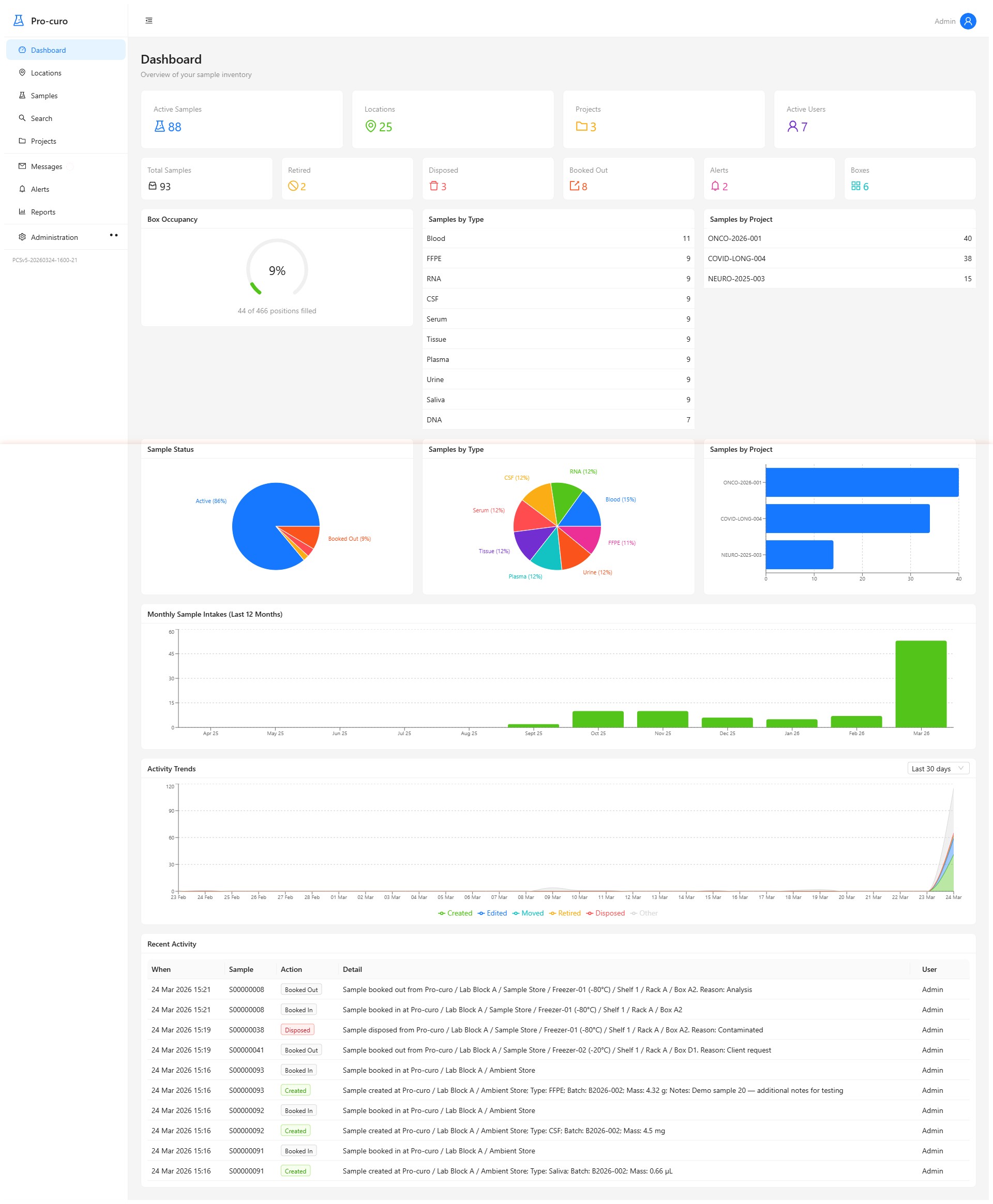
V5 is a completely new web-based application accessed through your browser. The main screen is an interactive dashboard with live KPI widgets, recent activity feeds, and quick-action buttons. Navigation uses a modern sidebar menu rather than a ribbon toolbar, and the interface is fully responsive — it works on desktops, tablets, and mobile devices.

Pro-curo V5 web-based dashboard

Initial system setup

Before you begin using Pro-curo, several items should be configured by your administrator. The steps below apply across all versions — menu paths shown are for V2–V4 desktop; V5 uses the web-based Administration panel.

  • Company details — In V2–V4: File → Setup → Company Details. In V5: Administration → Settings. Enter your organisation's name and contact information (appears on printed reports and labels).
  • Users — Set up an account for everyone who will use the system. In V2–V4: File → Setup → Users. In V5: Administration → Users. Define what each user can do — from full administrator rights to restricted access for specific tasks.
  • Sample types — Define the tissue and sample types your laboratory handles (e.g., Plasma, Cells, DNA, Tissue). These populate dropdown lists when registering new samples.
  • Projects — Create projects to organise samples by department, study, or client. Projects control visibility — users only see samples in projects they're approved for.
  • Disposal reasons — Set up the reasons a sample might be disposed of (e.g., expired, used for research, patient withdrawn). These appear in the sample's history for audit purposes.
Tip: Once a user has been removed from the system, they cannot be re-added with the same username. This is because their actions are permanently linked to that login name for audit trail integrity.
📍

Locations

Adding and organising locations

Pro-curo lets you model your entire storage infrastructure as a hierarchy of locations. All locations are listed under the root "Pro-curo" location, and the hierarchy can include buildings, rooms, freezers, shelves, racks, draws, and boxes.

You don't need the full set at every level — for example, you can have a building with just a freezer directly inside it if that matches your real-world layout.

Versions 2–4 (Desktop)

To add a new location:

  • Click on the parent location in the Locations panel (e.g., click your room to add a freezer within it).
  • Click the "New" icon in the Locations & Samples ribbon (V4) or menu bar (V2/V3), or right-click and select "New location...".
  • Choose the location type (Building, Room, Freezer, Shelf, Rack, Drawer, Box).
  • Enter a descriptive name — for example "Lab 1.1" for a room, or "-80 Freezer F001" for a freezer.
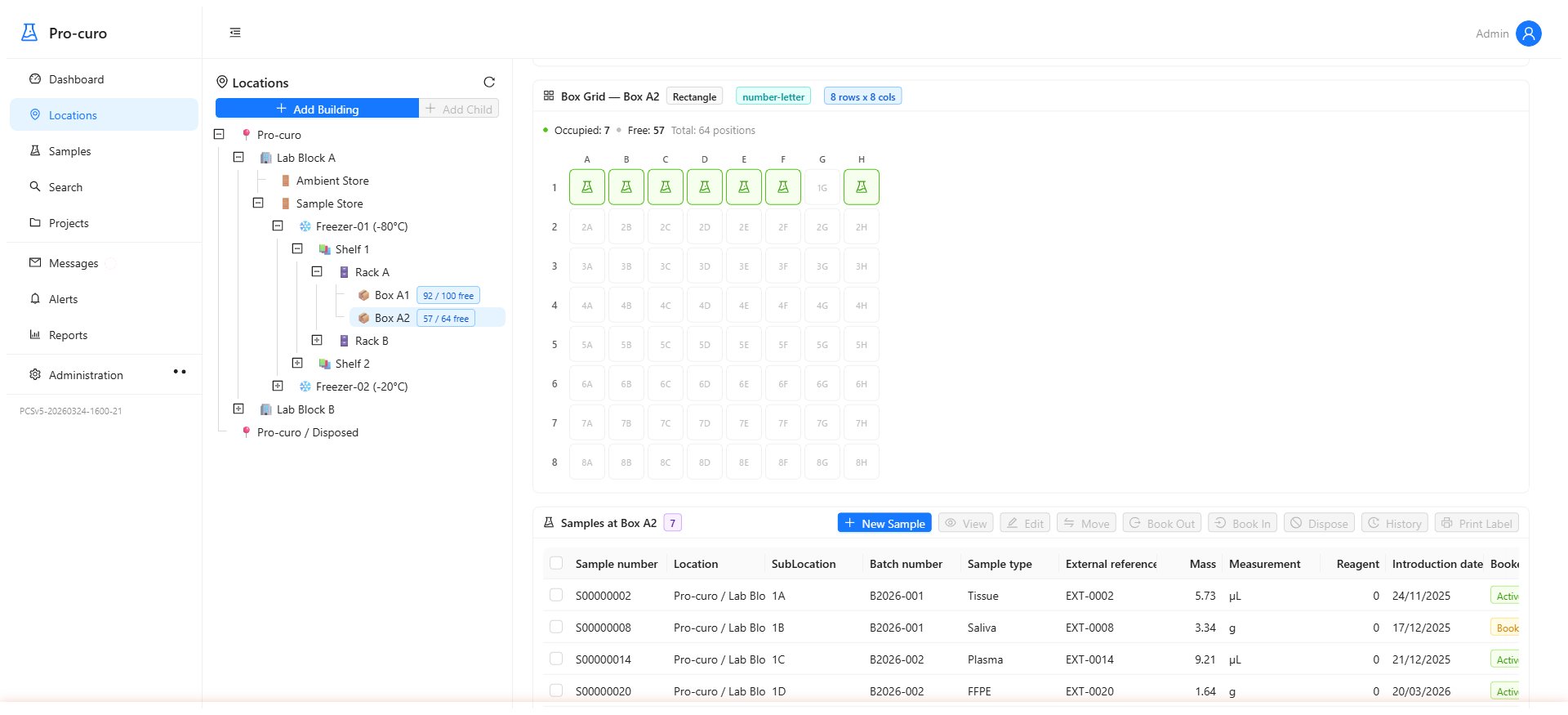
Pro-curo V4 location tree showing hierarchical structure Version 5 (Web-Based)

In V5, locations are managed through the web interface's Location Management section. The same hierarchy model applies, but with a modern drag-and-drop interface and the ability to manage locations from any device.

Enterprise edition: When creating a Box location, you can define its layout — single dimension (e.g., 10 positions), or two-dimensional grids with alphanumeric (A1–J10) or numeric (1–100) sub-locations. The system automatically creates all sub-positions for you.

Managing locations (duplicate, move, rename, delete)

Pro-curo provides several tools to help you manage your location structure efficiently:

  • Duplicate — Copy a location's structure (including all sub-locations) to quickly build out similar shelves, racks, or draws. This is particularly useful when setting up a freezer with a standard layout. Note: duplicating a location does not copy the samples within it, only the structure.
  • Move — Relocate a location to a different parent. You can only move within the correct hierarchy (e.g., you cannot put a room under a freezer). If the location contains samples, all their history records will be updated to reflect the change.
  • Rename — Change a location's name at any time. All sample history records within that location will be updated to show the new name.
  • Delete — Remove a location, but only if it contains no samples. A location may appear empty if you are not approved for all projects — check with your administrator.

In V2–V4, all of these actions are available from both the ribbon bar (V4) or menu bar (V2/V3) and the right-click context menu in the Locations panel. In V5, these actions are accessed through the web interface's location management tools.

Tip: The icons used for buildings, rooms, boxes, etc. can be customised to better reflect your institute's storage types. Contact the Pro-curo technical team for guidance.

Printing location labels

You can print labels for any location in your hierarchy. These labels can include 2D Datamatrix barcodes (V3+) representing the unique location name, which can be scanned with the Pro-curo Mobile application running on a portable barcode terminal.

V2–V4 (Desktop): Select the location in the tree, then click "Print label" in the ribbon (V4) or menu bar (V2/V3), or use the right-click menu. Choose your printer and label template from the Select Label dialog box.

Printed location labels speed up the process of moving samples remotely and improve traceability confidence by reducing the risk of a user selecting the wrong location manually.

🧪

Samples

Adding new samples

Versions 2–4 (Desktop)

Navigate to the location where you want to store the sample, then click "New" in the Samples section of the ribbon (V4) or menu bar (V2/V3), or right-click in the samples panel and select "New sample...".

Version 5 (Web-Based)

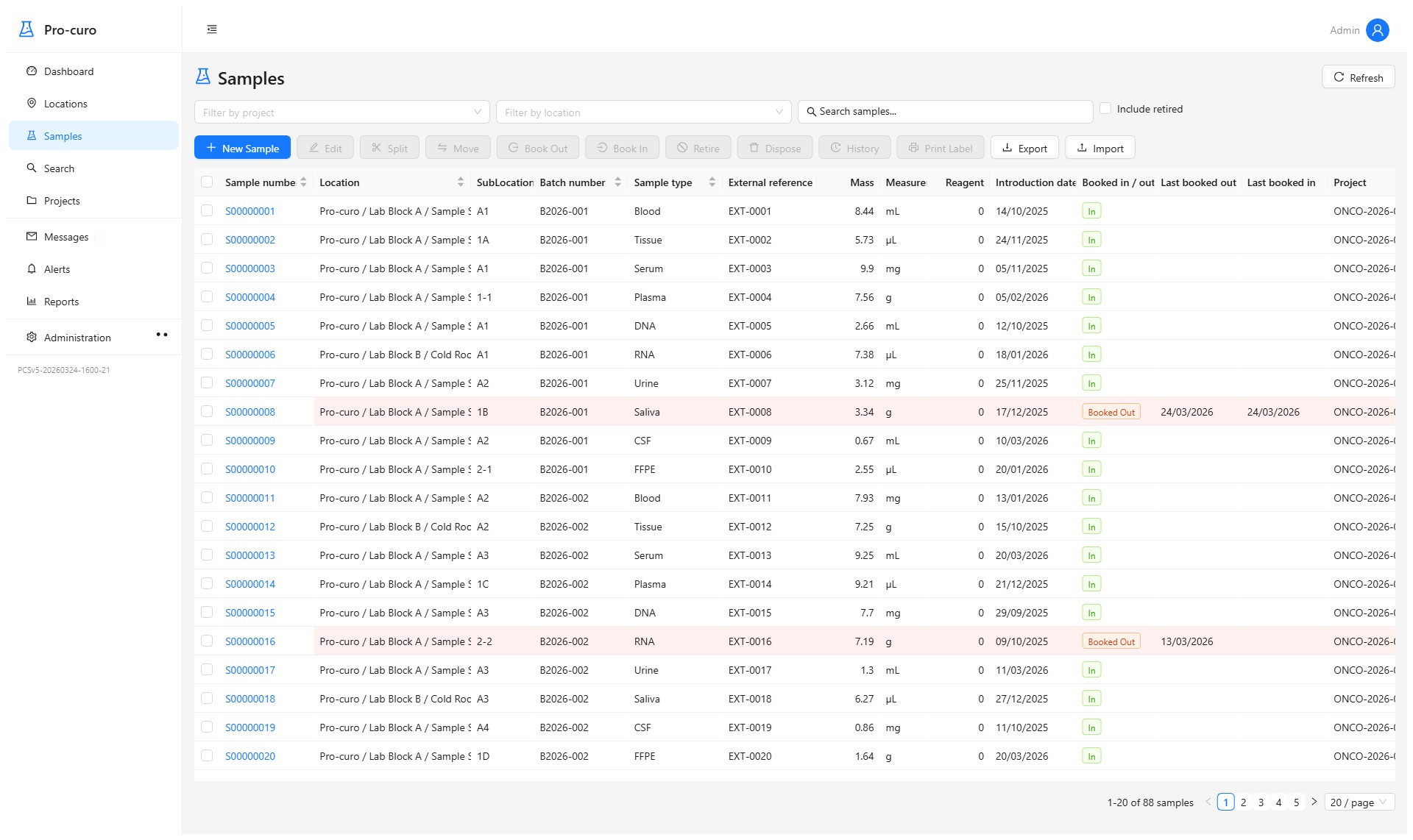
In V5, click the "Add Sample" button from the sample management view or from within any location. The sample form opens in the browser.

Across all versions, the Sample Information screen contains the following preformatted fields:

  • Project — Assign the sample to a project. This is mandatory and controls who can see and work with the sample.
  • Sample type — Select the tissue or material type (e.g., Blood, Plasma, Cells, DNA). This is mandatory and can be pre-loaded with your organisation's types.
  • Batch number — Typically used as a patient ID or donor ID, linking all samples from the same source.
  • External reference — Any unique identifier already on the sample, such as a pre-printed barcode. Pro-curo enforces 100% uniqueness on this field.
  • Mass — Record the sample's volume or weight, with a selectable unit of measurement.
  • Re-agent % — The percentage of the sample that is re-agent rather than actual tissue.
  • Location & Sub-location — The exact position within your storage hierarchy, right down to the box position.
  • Notes — Free-text field for additional information.
Pro-curo V5 sample management screen

You can also attach documents to individual samples or to entire batches using the "Sample document links" and "Batch document links" tabs.

Tip: Use "Add and duplicate" when registering multiple similar samples — it creates the first sample then prompts for how many additional copies to create, saving significant data entry time.

Every sample is assigned a unique Pro-curo sample number (starting with "S") that cannot be reused or repeated, making it ideal for barcode identification.

Custom user-definable fields

In addition to the standard fields, Pro-curo provides 20 user-definable fields per sample, allowing you to capture data specific to your organisation's requirements:

  • Fields 1–10: Can be pre-loaded with dropdown lists of possible values (e.g., Gender, Consent status, Storage type). These can be set to "strict dropdown only" or allow free text entry as well.
  • Fields 11–15: Free-flow text fields where users can enter anything.
  • Fields 16–18: Alphanumeric fields.
  • Fields 19–20: Calendar/date fields, ensuring consistent date formatting.

Field headings can be renamed to match your terminology (e.g., "User field 01" becomes "Gender" or "Consent Date"). Fields can also be marked as mandatory — the sample cannot be saved unless they are completed.

V2–V4 (Desktop): Configure these under File → Setup → User Fields. V5 (Web): Manage via Administration → Project Settings.

Editing samples

V2–V4 (Desktop): Highlight the sample in the samples panel and click "Edit" in the ribbon (V4) or menu bar (V2/V3), or double-click the sample, or right-click and select "Edit sample...".

V5 (Web): Click on a sample to open its detail view, then click "Edit" to modify fields inline.

In all versions, changes are recorded in the sample's full audit history.

Splitting (aliquoting) samples

The Split function lets you create new child samples from an existing parent sample — useful for aliquoting or processing tissue into multiple portions.

During a split you decide:

  • How many new samples to create
  • What sample type the new samples will be
  • Their individual mass/volume
  • Where to store them
  • What happens to the original (keep, retire, or dispose)

Full parent–child audit trails are automatically recorded. This is particularly time-saving when, for example, spinning down whole blood into 25 samples of Plasma, or extracting DNA from a tissue section.

Moving samples and booking in/out

Versions 2–4 (Desktop)

Moving samples: Select one or more samples (use Ctrl+click or Shift+click for multiple selection), then click "Move" in the ribbon (V4) or menu bar (V2/V3). A location picker will appear — select the new destination and click OK. You can also move entire locations with all their contents.

Booking out: When samples are temporarily removed from storage (e.g., for lab work), highlight them and click "Book out". The samples' background colour changes from white to brown, indicating they are out of storage.

Booking in: When samples are returned to storage, highlight them and click "Book in". The background returns to white.

Version 5 (Web-Based)

In V5, sample moves and booking in/out are handled through the web interface with the same functionality. Bulk operations are supported via checkbox selection, and the booking status is shown with clear visual indicators.

Tip: All booking and movement operations are recorded in the sample's history with a timestamp and the user who performed the action — critical for HTA audit compliance.

Retiring and disposing of samples

Retiring a sample removes it from the active view but preserves all history. Retired samples appear in orange if "Include retired samples" is checked. This is useful for samples no longer in active use but whose records must be retained (e.g., for the HTA's 30-year retention requirement).

Disposing moves the sample to "Pro-curo / Disposed" and records a disposal reason (which you set up in File → Setup → Disposal Reasons). The full sample history remains intact for compliance audits.

Important: Under the Human Tissue Act, tissue sample records may need to be retained for up to 30 years. Pro-curo's retire and dispose functions ensure records are never actually deleted, maintaining full traceability throughout the retention period.

Viewing sample history (audit trail)

Every action performed on a sample is recorded: who did it, what they changed, and when. In V2–V4, right-click a sample and select "View history..." or use the ribbon/menu icon. In V5, click on a sample to open its detail view, then select the "History" tab.

The history records all events including: creation, edits, movements, book in/out, splits, retirement, and disposal — giving you a complete, unbroken chain of custody from intake to final disposition.

This audit trail is essential for HTA compliance inspections and can be exported or printed as needed.

📋

Projects

Setting up projects

Projects let you organise samples by department, study, client, or site. Every sample must be assigned to a project, which also controls access — users only see samples in projects they are approved for.

To create a project, go to the Project Information screen and enter:

  • Project title — A descriptive name for the study or department.
  • Project sponsor — The funding body or responsible party.
  • Contact — The project owner or lead contact.
  • Address details — Postal address, telephone, fax.
  • Notes — Any additional context about the project.

Once a project is created, you must add approved users and configure user-definable fields specific to that project's data requirements.

Managing project access and permissions

Each project has an "Approved users" list. Only users on this list can view, add, or modify samples belonging to that project. A user can be approved for multiple projects, and a project can have multiple approved users.

In the V4+ versions, project permissions are managed within the Users screen (under Administration), making it easier for administrators to see and manage all of a user's project access in one place.

When a user selects a project from the Project filter dropdown on the main screen, only samples belonging to that project are displayed, and the column layout may change based on the project's user-definable field configuration.

🏷

Labels & Barcodes

Using the graphical label designer

Versions 3–4 (Desktop)

Pro-curo V3 introduced the built-in graphical label designer for creating custom label templates. The designer is accessed from the main Setup menu and allows you to:

  • Create unlimited label templates with custom names
  • Set the label height, width, and format
  • Add Linear barcodes, 2D Datamatrix codes, and text/database fields (including user-definable fields)
  • Preview labels at different magnification levels (x2, x4, x6, x8)
  • Test-print before deploying a template

To print labels, highlight one or more samples (using Ctrl or Shift for multiple selection), click the Print button, select your printer and template, and the labels are produced. You can also import and export label designs to share them across installations.

Version 2

V2 includes basic label printing with linear barcode support but does not have the graphical label designer — label templates use a simpler text-based format.

Barcode, RFID, and portable terminal integration

Versions 3–4 (Desktop)

From V3 onwards, Pro-curo integrates with barcode scanners and RFID readers for faster, more accurate sample tracking. The Pro-curo Mobile application runs on portable barcode terminals, enabling staff to:

  • Scan location labels to navigate the storage hierarchy
  • Book samples in and out by scanning their barcodes
  • Move samples between locations remotely
  • Upload and download data to/from the main Pro-curo database

Supported label printers include the Zebra GK420t range and similar thermal transfer printers. The mobile data manager provides offline capability, with auto-detection of connected devices and single-screen upload/download operations.

📊

Reports & Search

Running reports and using the query builder

Versions 2–4 (Desktop)

Pro-curo includes built-in system reports that can be run from the Reporting tab (V4) or Reporting menu (V2/V3). You can print sample lists, project summaries, location inventories, and audit trail reports.

The current sample list view can also be exported directly — click "Export grid" (V4) or use File → Export (V2/V3) to save the visible data as a CSV file for use in Excel or other tools.

Version 5 (Web-Based)

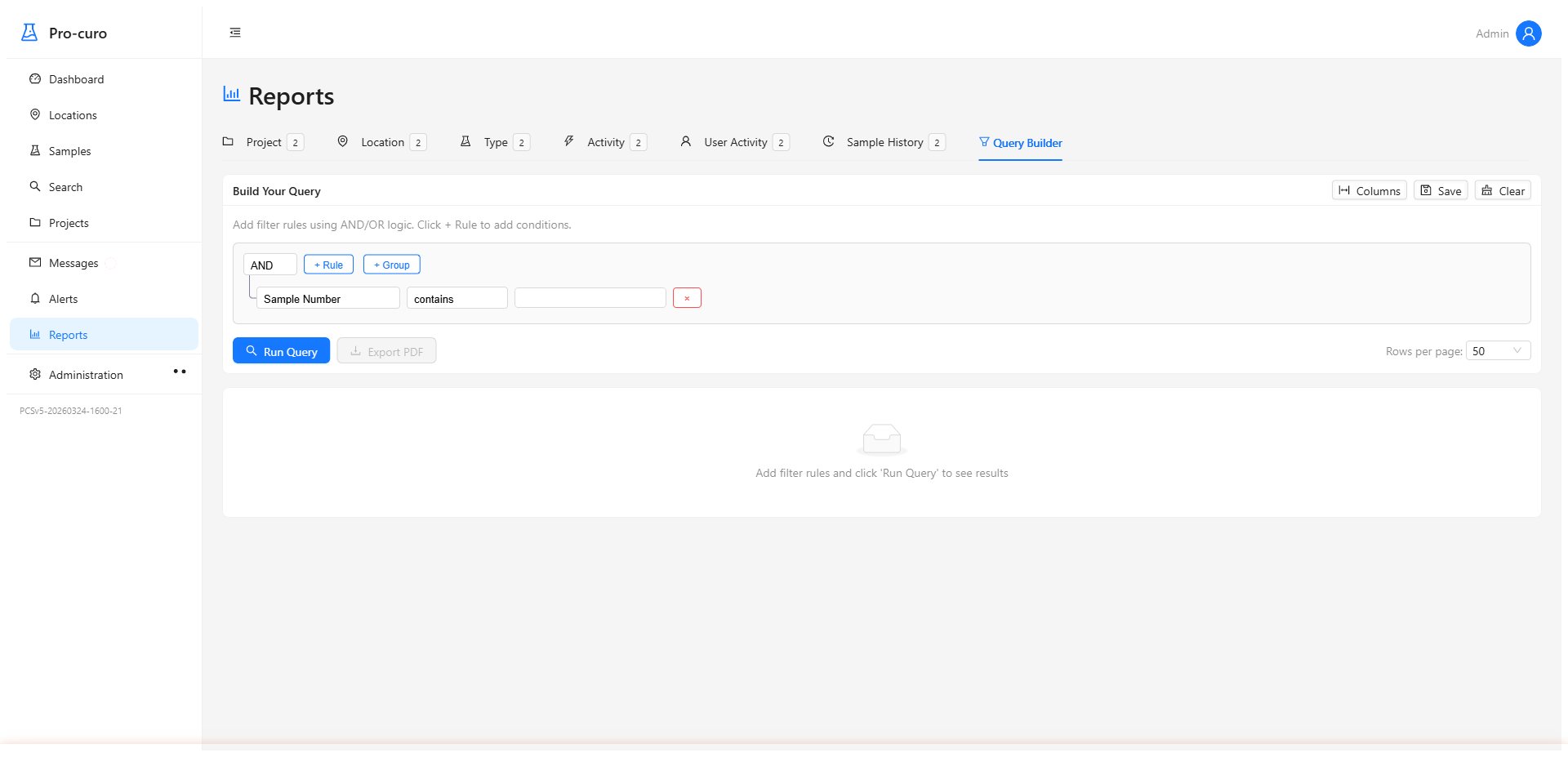
V5 introduces the visual Query Builder — create custom data queries without writing any code. Drag and drop fields, apply filters and groupings, then export to CSV or generate polished PDF reports. You can save queries for re-use and schedule recurring reports.

Pro-curo V5 query builder interface

Search and filtering

Pro-curo offers multiple ways to find what you're looking for:

  • Project filter — Use the dropdown on the main screen to narrow the view to a single project's samples.
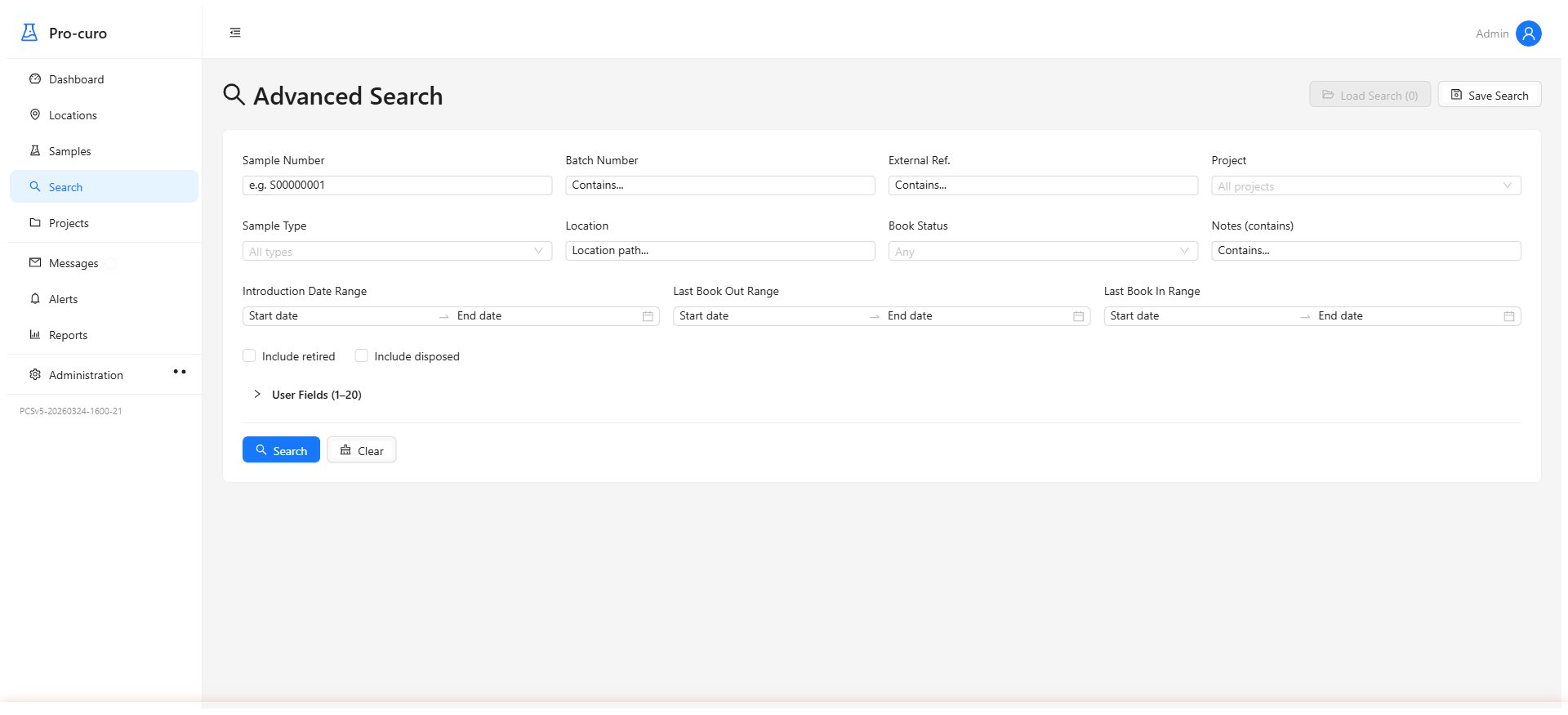
  • Built-in search — Access from the Search menu to find samples by number, batch, external reference, or any other field.
  • Advanced SQL searches (V3+) — For power users, custom SQL queries can be run against the database for complex multi-criteria searches.
  • V5 Global search — Search across samples, projects, locations, and documents simultaneously with instant results as you type and saved search presets.
Pro-curo advanced search interface

Date alerts and notifications

Date alerts let you set automatic reminders based on date fields in your samples. This is useful for tracking consent expiry dates, review dates, or any time-sensitive event.

Versions 2–3 (Desktop)

Go to File → Admin → Date Alerts. You can configure alerts on a single sample, batch, or project, and choose which date field to monitor. Alerts are checked manually from the Notifications area.

Version 4 (Desktop)

V4 enhanced date alerts with automatic checking and a dedicated Notification Bar at the bottom of the main screen. Active alerts are highlighted in green when due. The date alert process runs automatically in the background.

Version 5 (Web-Based)

V5 provides a modern notification system with browser alerts, dashboard widgets for upcoming expiries, and configurable alert rules through the Administration panel.

Importing external data

Pro-curo can import sample data from external CSV files, making it easy to migrate from other systems or bulk-load records.

Version 4 (Desktop)

V4 introduced custom import profiles that map your CSV columns to Pro-curo fields. Profiles are stored per project and support both comma and colon delimiters.

Version 5 (Web-Based)

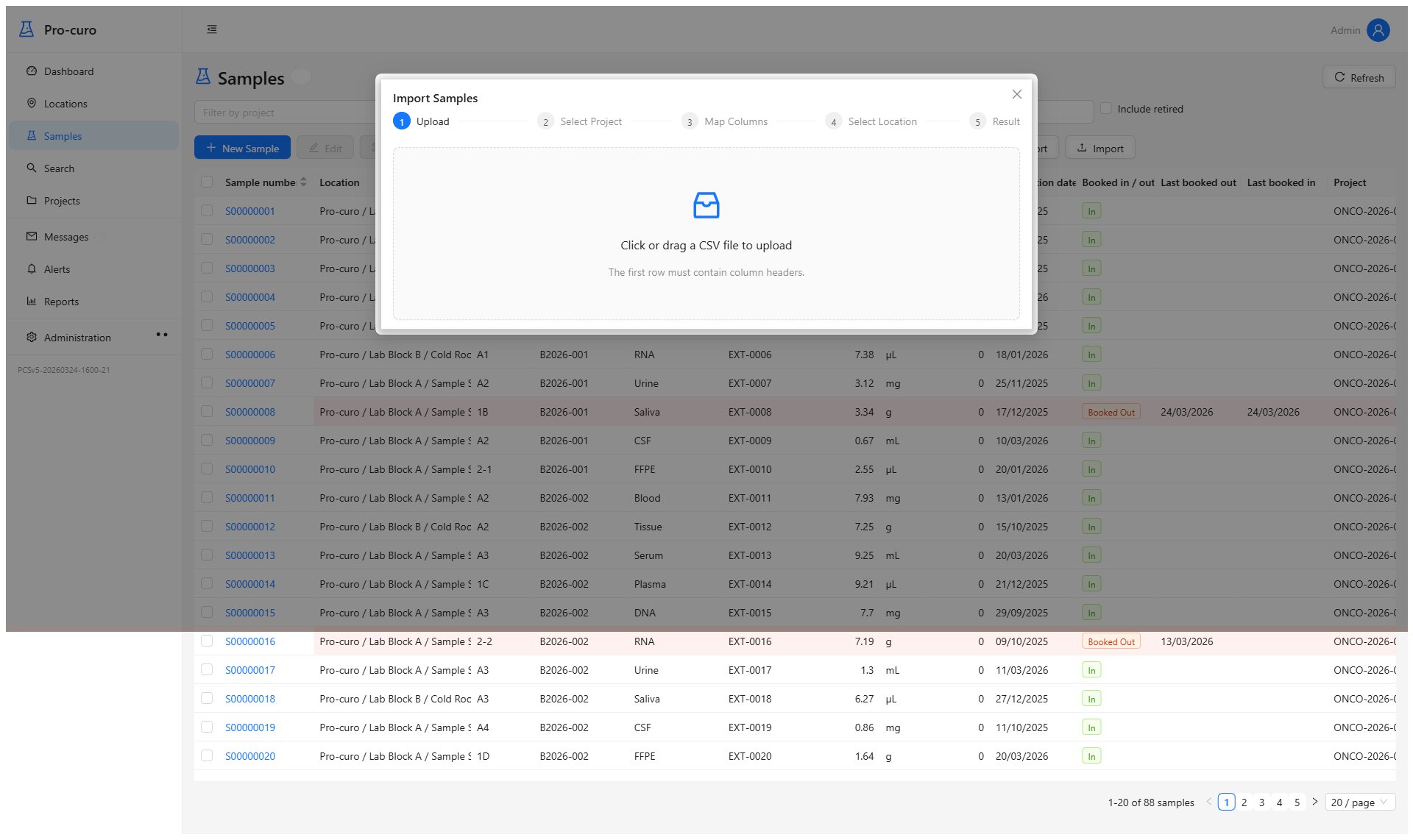
V5's step-by-step Import Wizard provides drag-and-drop CSV upload, automatic column mapping, pre-import validation with error highlighting, and a clear summary of what was imported. You can also view import history and roll back if needed.

Pro-curo V5 CSV import wizard
⚙️

Administration

Managing users and permissions

Every person who uses Pro-curo must have their own login name and password.

V2/V3: User accounts are managed under File → Setup → Users. V4: Administration tab → Users. V5: Administration → User Management in the web interface.

Across all versions, the administrator can control granular permissions including:

  • Full administrator rights
  • Setup access (company, projects, sample types, etc.)
  • Sample operations (add, edit, split, move, retire, dispose)
  • Booking in/out
  • Label printing
  • Access to specific projects
  • Running the portable/mobile application
Important: If you remove a user, they cannot be re-added. This is by design — the user's actions are permanently linked to their login name in the audit trail. Instead, you can limit their permissions or set their password to prevent access.

Configuring sample types and measurement units

Sample types define what kind of tissue or material each sample contains. These populate dropdown lists during sample entry and can be added or removed as needed.

Common sample types include: Plasma, Cells, Blood, DNA, Tissue, Serum, FFPE, and any other category relevant to your work.

Measurement units (ml, g, mg, etc.) are also configurable and can be added at any time via the setup menu or directly during sample entry by clicking the button next to the dropdown.

From V4, sample types can be filtered (allocated) per project, reducing the selection lists to show only types relevant to that specific study or department.

Customising column order and data display

Versions 2–4 (Desktop)

You can rearrange the columns shown in the sample list view to prioritise the fields most relevant to your daily work. The Data View Selection screen lets you choose which columns are visible and their order — select all, deselect all, and move columns up or down.

In the V3/V4 Enterprise edition's grid view, you can also select which data appears in the cell ID label and link label fields, and adjust cell scaling to "fit to display" for optimal viewing.

Version 5 (Web-Based)

V5's table views support drag-and-drop column reordering, resizable columns, and saved view presets directly in the browser.

Database management and maintenance

Versions 2–3 (Desktop)

V2 and V3 use a local database. Periodic maintenance tasks include:

  • Archive — Move disposed samples to an archive database to keep the active database lean and fast.
  • Check database — Run integrity checks to ensure data consistency.
  • Maintenance — Compact and optimise the database.
  • Removing record locks — Clear any locked records (e.g., after a crash).
Version 4 (Desktop)

V4 moved to SQL Server databases with support for custom database names, allowing multiple databases on the same SQL instance. The V4 installation is distributed as a single MSI file for easier deployment. The same archive and maintenance tools are available through the Administration tab.

Version 5 (Web-Based)

V5 uses PostgreSQL for enterprise-grade reliability and full-text search, with Docker-based deployment for consistent installations across cloud and on-premise environments. Database maintenance is handled through the web-based Administration panel.

Internal messaging

Pro-curo includes a built-in internal messaging system that allows users to communicate within the application.

V2/V3: Messages are accessible from the main menu. V4: Unread message counts are shown in the Notification Bar at the bottom of the screen. V5: Messaging is integrated into the web-based notification system.

This feature is useful for sending notes about specific samples or projects to colleagues without leaving the application.

📅

Version History

Pro-curo V5 Current

2025 — Present

A complete rebuild as a modern web application. Pro-curo V5 moves from a Windows desktop application to a browser-based platform accessible from any device, built on React, Node.js, and PostgreSQL.

  • Web-based — access from any browser
  • Interactive dashboard with live KPIs
  • Visual query builder for custom reports
  • CSV import wizard with validation
  • Advanced cross-entity global search
  • React & Ant Design front-end
  • PostgreSQL database
  • Docker containerised deployment
  • Cloud or on-premise hosting
  • Full audit trail with compliance focus

Pro-curo V4 (Enterprise)

2016 — 2025

A major update with a refreshed interface, enhanced usability, and expanded enterprise features. V4 introduced the tabbed ribbon interface, grid view improvements, and multi-language support.

  • Updated look and feel with ribbon tabs
  • Enhanced grid view with cell scaling
  • Notification bar (messages, alerts, counts)
  • Location external references for barcode audits
  • Enhanced date alert automation
  • Multi-language (French, Spanish, Dutch, Russian)
  • Per-user settings (printers, preferences)
  • Project-based sample type filtering
  • Custom CSV import profiles per project
  • Enhanced mobile data manager
  • SQL Server with custom database names
  • Single MSI installer

Pro-curo V3 (Lite, Pro & Enterprise)

2010 — 2016

Introduced three product tiers and expanded the platform with barcode/RFID integration, portable terminal support, a graphical label designer, and the audit manager.

  • Three editions: Lite, Pro, Enterprise
  • Graphical label designer
  • 2D Datamatrix barcode support
  • RFID integration
  • Portable terminal for mobile operations
  • Audit manager
  • Scanning integration
  • Advanced SQL search capability
  • Enhanced reporting and data exchange
  • MySamples personal view

Pro-curo V2

2008 — 2010

The original Pro-curo release. A Windows desktop application providing core sample management, location hierarchy, user management, and basic reporting for tissue traceability.

  • Windows desktop application
  • Hierarchical location management
  • Sample lifecycle tracking
  • User management and access control
  • Project-based sample organisation
  • 20 user-definable fields
  • Label printing with barcode support
  • Date alerts and notifications
  • Basic reporting and CSV export
  • Sample disposal and retirement tracking

Frequently Asked Questions

What are the system requirements for Pro-curo?

Pro-curo V5 (web-based): Any modern web browser (Chrome, Edge, Firefox, Safari) on any operating system. The server component runs on Docker and can be hosted in the cloud or on-premise.

Pro-curo V4 and earlier (desktop): Windows operating system with .NET Framework. SQL Server database (or local database for single-user installations).

Contact us for detailed technical specifications for your deployment scenario.

Is Pro-curo compliant with the Human Tissue Act?

Pro-curo was designed from the outset to support organisations regulated under the Human Tissue Act 2004 and the EU Tissue Directive (2004/23/EC). The system provides:

  • Full donor-to-recipient traceability with unbroken chain of custody
  • Complete audit trail on every record — who, what, and when
  • 30+ year data retention capability
  • Configurable user permissions and access controls
  • Disposal tracking with documented reasons

Pro-curo is not classified as a medical device — it is a sample inventory and traceability system that helps your establishment meet HTA regulatory requirements.

Can Pro-curo be hosted in the cloud or on-premise?

Yes — Pro-curo V5 supports both deployment models. The Docker-based architecture means the application can run identically in a cloud environment (such as Microsoft Azure) or on your own on-premise servers.

Cloud hosting is ideal for organisations that want managed infrastructure, automatic backups, and anywhere-access. On-premise deployment suits organisations with strict data sovereignty requirements or existing server infrastructure.

You can also start with one model and migrate to the other later without losing any data.

How do I migrate from an older version of Pro-curo?

Pro-curo has built-in migration tools for moving between versions:

  • V3 to V4: An automated database migration system upgrades your data from version 3.x.x.x to 4.0.0.0. Detailed step-by-step upgrade guides are available.
  • V4 to V5: Contact us for a tailored migration plan — we'll help ensure your data, users, and settings transfer smoothly to the new web-based platform.

We also support migration from other sample management systems via CSV import.

How do I get technical support?

Our support team is available during UK business hours:

All customers with an active support contract receive priority support including software updates, bug fixes, and technical assistance. We also offer training sessions for new users and administrators — contact us to arrange a session tailored to your team's needs.

Can I try Pro-curo before committing?

Yes — we offer personalised demonstrations where we walk you through the features most relevant to your organisation. We can also arrange a free trial period so your team can evaluate Pro-curo in your own environment.

Request a Demo

Is Pro-curo classified as a medical device?

No. Pro-curo is a sample inventory management and traceability system. It does not diagnose, treat, monitor, or control any medical condition or physiological process, and therefore does not fall within the definition of a medical device under the Medical Devices Regulations 2002 or EU MDR.

Pro-curo manages the storage, tracking, and audit trail of tissue samples — it does not make clinical or diagnostic decisions.

Can't find what you're looking for?

Get in touch with our team — we're happy to help with any question about Pro-curo, whether it's technical support, training, or general enquiries.

Contact Support